Key takeaways:
- Switch airflow is named from the port side: port-side intake (front-to-back, F2B) pulls cold air in through the ports, and port-side exhaust (back-to-front, B2F) pushes hot air out through them.
- The rack decides which one you order. A top-of-rack or out-of-band management switch cabled to server ports at the rear of a cabinet usually needs port-side exhaust.
- Every fan tray and power supply in one chassis has to move air the same way, so order spares by airflow SKU as well as by model.
- SONiC reports each fan’s direction, and on platforms that enable it the system-health check flags a fan that disagrees with the rest; only inlet temperature reveals a switch whose fans all agree on the wrong direction.
You rack a new 1G management switch at the back of a server cabinet, cable it to the baseboard management controller (BMC) ports, and two weeks later its inlet sensor reads hotter than anything else in the row. The cabling is tidy and every port links up, yet the fans are pulling air from the hot aisle because the purchase order carried the default airflow SKU.
Switch airflow is a one-line field on a datasheet, and it decides whether a switch breathes the air your facility paid to cool or the air every server around it just heated.
This guide covers how to read the labels, how to pick a direction for each rack layout, what a mismatch costs, and how to check it from the network operating system (NOS), including on SONiC Lite, the SONiC distribution PLVision built for access, management, and edge switches.
What Switch Airflow Direction Means on a Network Switch
Airflow direction describes which way the fans push air through the chassis. The industry names it from the port side because “front” means different things to different teams: a server admin calls the bezel the front, while a network engineer calls the side with the RJ-45 jacks and SFP cages the front.
Port-side intake means cool air enters through the ports and leaves through the power supplies. Datasheets also write it as front-to-back, F2B, port-to-power, or forward airflow. Port-side exhaust runs the other way, with air entering at the power supplies and leaving through the ports, written as back-to-front, B2F, power-to-port, or reverse airflow.
Seen from above, the two paths differ only in which end of the chassis takes the air in.
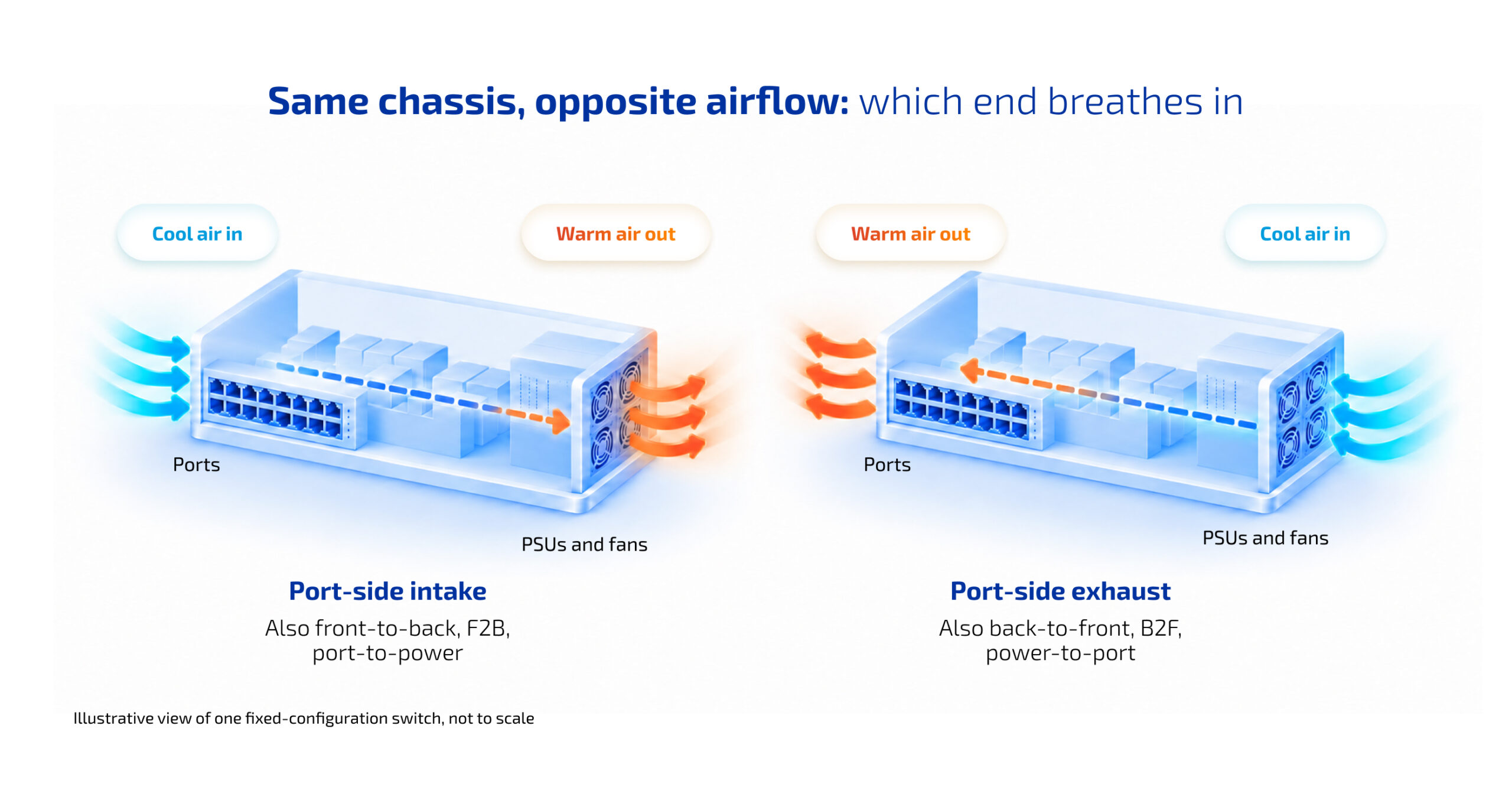
The table maps the names you meet on datasheets, part numbers, and module labels to the path the air actually takes.
| Airflow type | Other names you will see | Air enters | Air leaves | Where it usually fits |
|---|---|---|---|---|
| Port-side intake | Front-to-back, F2B, port-to-power, forward | Port side | Power supply side | Switches mounted with ports facing the cold aisle |
| Port-side exhaust | Back-to-front, B2F, power-to-port, reverse | Power supply side | Port side | Top-of-rack and management switches mounted with ports facing the hot aisle |
| Side-to-side | Left-to-right, right-to-left | One side panel | The opposite side panel | Large modular chassis, cell-site routers, and shallow street cabinets |
| Passive | Fanless, convection-cooled | Vents and heat sinks | Vents and heat sinks | Small desktop and industrial switches with a low power draw |
Side-to-side and fanless designs are the exceptions inside a data center. Most fixed-configuration switches you rack in a server or network cabinet ship as port-side intake or port-side exhaust, and many models come in both versions under separate part numbers.
Open hardware adds a vocabulary problem of its own. SONiC runs on platforms from Accton, Celestica, Wistron, and other manufacturers, a range cataloged in SONiC’s capabilities white paper, and each manufacturer labels airflow in its own style. One team can end up reading three label conventions in the same row.
Why Rack Orientation Decides the Airflow You Order
The rack decides the airflow, and the deciding question is which way the ports face once the switch is cabled. Get that answer first and the SKU follows from it.
In a server cabinet laid out for hot and cold aisles, servers breathe front to back. Most rack servers put their NICs and BMC ports at the rear, so the top-of-rack switch is usually mounted at the back of the cabinet with its ports facing the hot aisle, which keeps the cables short. Its power supplies then face the cold aisle, and the switch needs port-side exhaust.
Drawn as a floor plan, the same rack shows what the airflow SKU alone changes for that switch.
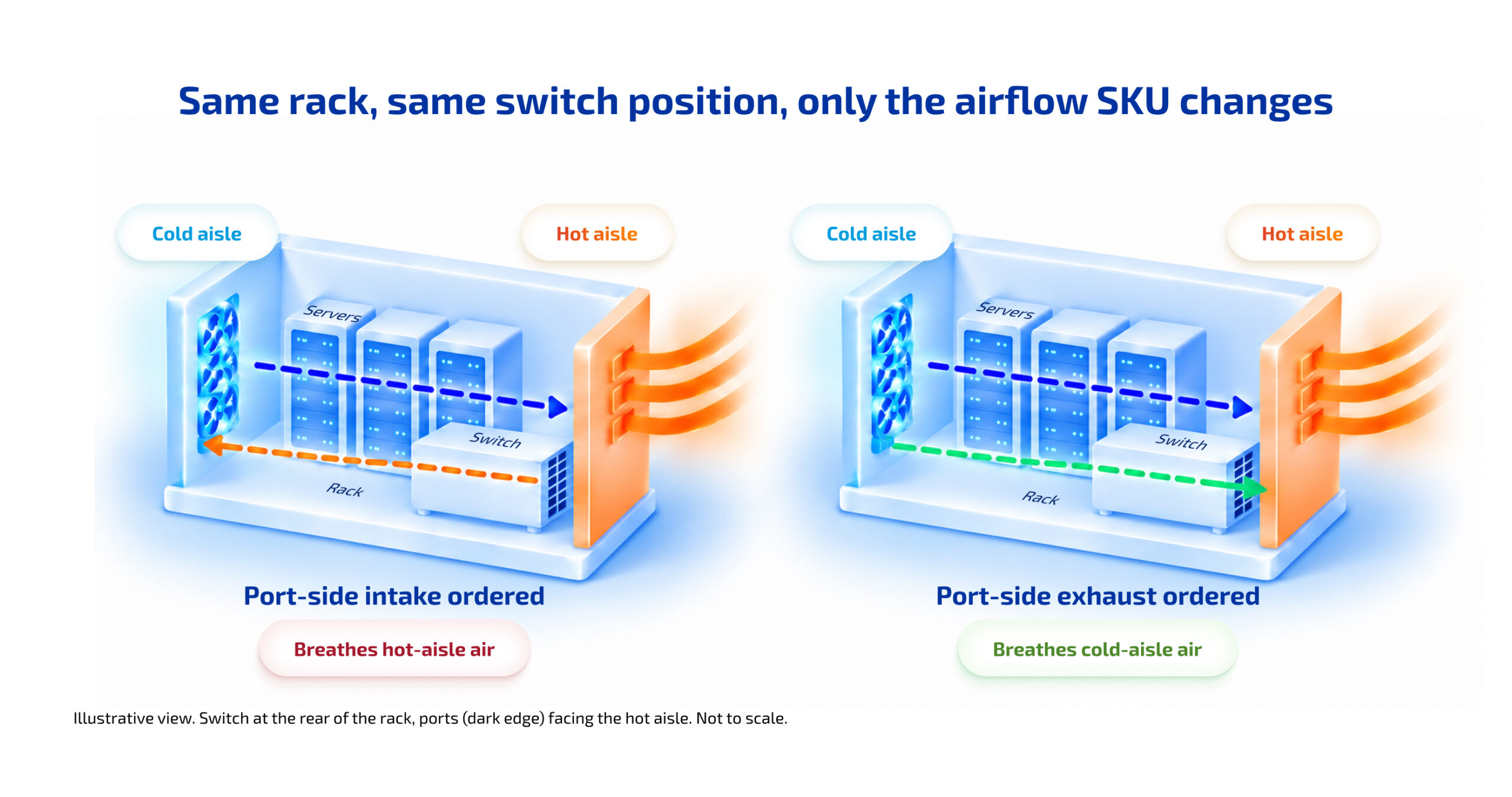
A network rack works the other way. Spine and aggregation switches often sit beside front patch panels with their ports in the cold aisle, which calls for port-side intake. Front-I/O servers, common in Open Compute Project (OCP) racks, flip the server case too: once the server ports move to the cold aisle, the top-of-rack switch can turn around and use port-side intake.
The table below is the quick lookup most teams need when they fill in a purchase order.
| Where the switch sits | Ports face | Airflow to order |
|---|---|---|
| Top-of-rack in a server cabinet, cabled to server NICs at the rear | Hot aisle | Port-side exhaust (B2F) |
| Out-of-band management switch cabled to BMC ports at the rear | Hot aisle | Port-side exhaust (B2F) |
| Top-of-rack in a front-I/O server rack | Cold aisle | Port-side intake (F2B) |
| Spine, aggregation, or core switch next to front patch panels | Cold aisle | Port-side intake (F2B) |
| Campus access switch in a closet, ports toward the patch panel | Room side, usually the cooler side | Port-side intake (F2B), checked against the cabinet’s own fans |
| Edge or street cabinet with side vents or limited depth | Depends on the enclosure | Side-to-side, or the direction the enclosure maker specifies |
Campus closets are the hardest row in the table, because there is no aisle to look at. A wall cabinet usually has its patch panel and switch ports at the front door, so the cabinet’s own fans and vents decide which side is actually cooler, a detail worth adding to any SONiC Lite campus design.
What Happens When a Switch Breathes Hot-Aisle Air
A switch with the wrong airflow pulls in air that another device has already heated. Its inlet temperature rises, its fans spin faster to compensate, and the exhaust it pushes out lands on the intake of whatever sits next to it. That loop is called recirculation, and it moves heat around the rack without removing any.
The first limit you hit is the manufacturer’s operating range. Celestica’s ES1000 documentation states 0 to 45°C for its access switches, with the note “airflow front to back” beside the figure, and Edgecore’s ECS4650-54P datasheet gives -5 to 45°C. A hot-aisle inlet in a dense row can approach those ceilings on a warm day, and a switch that crosses its shutdown threshold takes every link with it.
The second cost lands on the facility. Cooling accounts for between 10% and 30% of a data center’s load, according to the IEA’s 2025 Energy and AI report, so air that circulates without doing useful work is paid for twice: once in switch fan power and again at the cooling plant.
Denser racks shrink the margin. A growing number of operators now report peak rack densities of 30 kW or higher, according to Uptime Institute’s 2026 survey of more than 800 data center owners and operators. A 1U switch at the top of such a rack that breathes from the hot aisle takes in the warmest air in the row, because the exhaust of every server below it rises as it leaves.
The software on the switch plays a smaller part in the same equation. Lower CPU and memory load trims some heat inside the chassis, a small lever next to the ASIC and optics and one of those covered in PLVision’s look at data center sustainability. It helps, but it never rescues a switch that is inhaling exhaust.
Work with the SONiC Experts
Benefit from PLVision's deep experience delivering enterprise SONiC solutions across industries.
Reading Airflow Port Labels on Datasheets, SKUs, and Modules
The airflow port convention shows up in three places, and they have to agree: the datasheet, the part number on the purchase order, and the label on each hot-swappable module.
Datasheets either list airflow per SKU or state one direction for the whole model. Celestica’s ES1000 table of attributes, for example, marks every SKU from the ES1000-24 to the ES1000-48CP as available in F2B and B2F. Edgecore’s 2025 datasheet for the AS4630-54PE campus switch states “Front-to-back airflow only”, which means the model cannot serve a rack that needs port-side exhaust.
Modules carry their own labels. Edgecore’s quick start guide for the AS4600-54T puts the rule plainly: “All installed modules must have a matching airflow direction”, with the direction “indicated by labels on the modules.” Some vendors also color the module handles, but the colors differ from one vendor to the next, so read the printed text.
A short receiving checklist catches most mistakes before the switch reaches the rack:
- Confirm the airflow field for the exact SKU on the datasheet, not only the model family page.
- Match the power supply (PSU) part number and the fan tray part number to the same direction.
- Order spare PSUs and fan trays with the same airflow suffix as the installed ones.
- Read the label on every module at receiving, before the switch is racked.
- Record the airflow in your data center infrastructure management (DCIM) tool next to the serial number.
- Check whether the operating temperature rating differs for the reverse-airflow SKU.
The spare-parts line matters most over the life of the switch. A replacement PSU pulled from a shared spares shelf is how a correctly ordered switch ends up with mixed airflow three years later.
How to Pick Switch Airflow for a New Rack, Step by Step
Picking switch airflow takes ten minutes with the rack in front of you and a floor plan in hand. The steps below assume a fixed-configuration switch with a known mounting position.
Six Checks Before You Order
Work through these in order, because each answer feeds the next one.
- Find the cold side of the cabinet by walking the row or reading the inlet sensors on the servers already installed.
- Decide which way the switch ports must face, based on where the cables end: server NICs, BMC ports, or a patch panel.
- Derive the airflow from that: ports in the cold aisle means port-side intake, and ports in the hot aisle means port-side exhaust.
- Check the devices directly above and below, so the switch takes its air from the same side they do.
- Order the switch, every PSU, every fan tray, and the spares in that one direction.
- Verify at first boot from the NOS: the reported fan direction, the inlet temperature, and the fan speed under load.
Step 6 is the easiest to skip under deadline, and it is the cheapest of the six. A two-minute look at the CLI on day one costs far less than a thermal alarm in month six.
When the Room Has No Aisles
Small server rooms and branch closets often mix layouts, with racks facing a wall or each other.
In that case, let measured temperatures set the switch air flow: read the air at the front and back of the cabinet at switch height before you buy, and order the direction that takes air from the cooler side. If both sides read the same, pick the direction that matches the other devices in the cabinet, so every fan in it pushes air the same way.
Why Out-of-Band Management Switches Need the Same Airflow Care
The out-of-band (OOB) management switch is an easy one to order with the wrong airflow. It draws little power, it is often bought late and from a separate budget line, and it gets mounted wherever a rack unit is free, frequently at the rear next to the BMC ports it serves.
Its position puts it in the hot aisle, so in most server cabinets it needs port-side exhaust, the same as the top-of-rack switch beside it. Many 1G management and access switches also use fixed fans. Celestica lists the ES1000 family with “redundant fixed fans” in forward and reverse airflow configurations, so the direction on the purchase order is the direction for the life of the box.
PLVision, a networking software engineering company active in open networking since 2007, built SONiC Lite for this class of switch. The product brief describes it as “an enterprise distribution of SONiC by PLVision for cost-effective management and access platforms (those with limited CPU performance and with less RAM and storage capacity) in data center, edge, and campus deployments,” and the ES1000-24P, ES1000-48P, and ES1000-48CP sit on its hardware compatibility list.
Running SONiC Lite on management switches brings the OOB layer into the same SONiC tooling, so a team that already runs SONiC elsewhere checks the management network with commands it already knows. Confirm each command below on the exact switch model during qualification, because platform support decides what it reports.
Campus Closets, Edge Cabinets, and PoE Heat
Campus and edge switches face a different thermal problem. There are no hot and cold aisles, the closet may rely on a single wall fan, and the switch often powers the access points and cameras around it.
A Power over Ethernet (PoE) switch moves a lot of power through a small box. Edgecore’s ECS4650-54P lists a maximum system power of 835 W with a 740 W PoE budget, against 52 W for the non-PoE ECS4650-54T. Most of that PoE power is delivered to the endpoints and turns into heat there, but the power supplies converting it run hotter under full PoE load, and their fans move the same air as the rest of the chassis.
The ECS4650-54P is also a switch that ships with SONiC Lite pre-installed for OpenLAN Switching deployments. In a closet full of PoE switches, matching airflow direction across the stack matters as much as it does in a data center row, because a single reversed switch can blow its exhaust into the neighbor’s intake.
Transforming OpenLAN Switching with SONiC Lite & Edgecore ECS4650-54P
Cabling adds heat outside the chassis too. Tight bundles of PoE cable trap heat along their length and can block the vents they run past, which is why PoE cable bundling guidance favors loose strapping and separation from AC power lines. Keep bundles clear of the switch’s intake side.
Fanless switches are the last edge case. They suit small, low-power boxes in quiet rooms, and they depend entirely on free space around the vents, so give them an open shelf with clear air above and below, away from sealed cabinets full of active switches.
How SONiC Reports Fan Direction and Flags a Mismatch
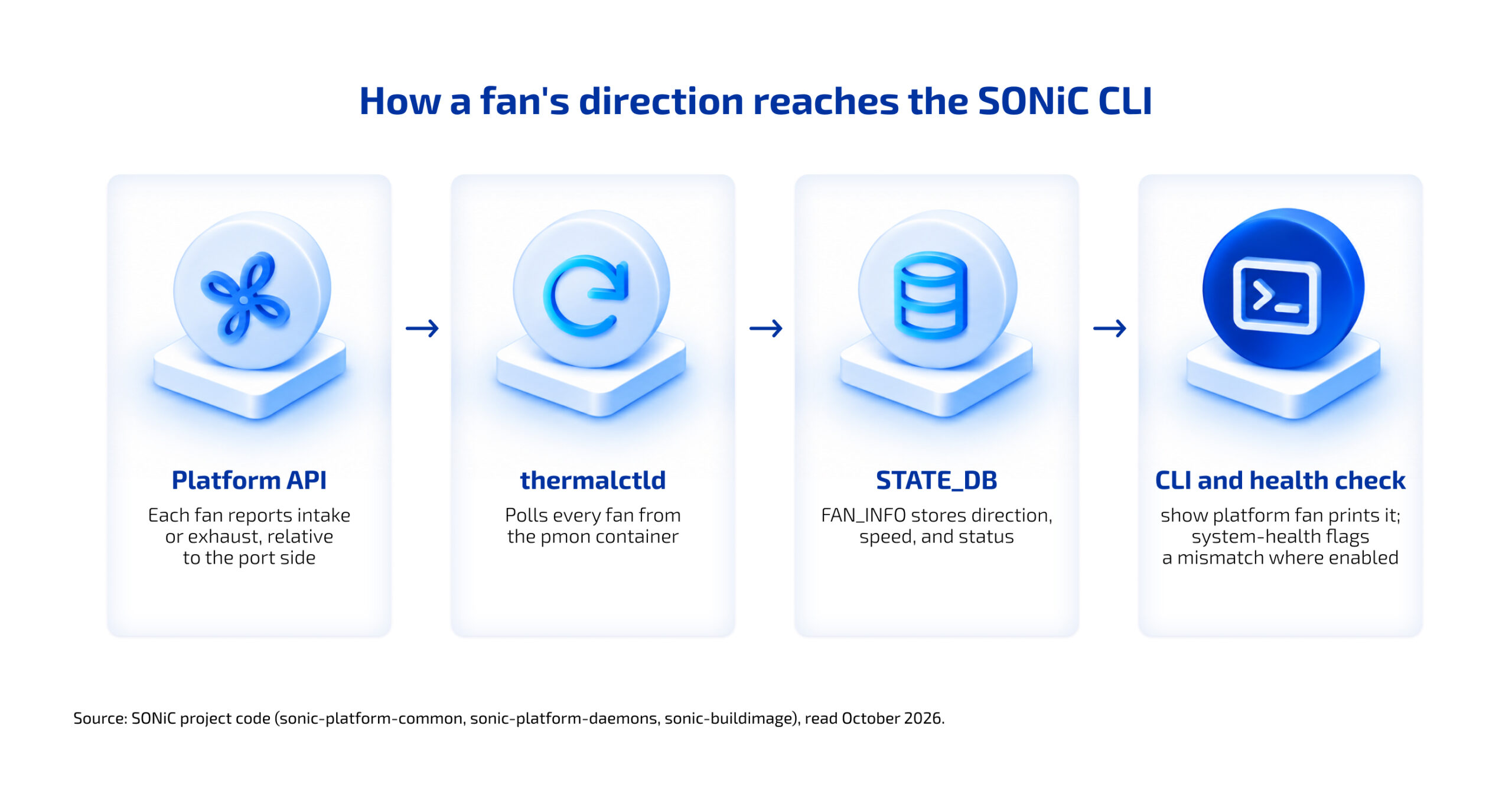
SONiC reads fan direction through its platform API. Each fan object exposes a direction method that returns “intake” or “exhaust”, and the base class in the sonic-platform-common repository defines both values relative to the port side of the device, which lines up with the port-side intake and exhaust terms above.
That value passes through four layers before an engineer reads it in the CLI.
The thermal control daemon in the platform monitor (pmon) container polls those values and writes them to the FAN_INFO table in STATE_DB, along with presence, speed, and status.
Learn more about SONiC's architecture, its capabilities, and explore inspiring success stories of SONiC deployments across diverse network environments.
Three commands give you the airflow picture on a SONiC switch:
                        show platform fan
show platform temperature
show system-health detail
The first prints a Direction column for every fan, the second shows each thermal sensor against its threshold, and the third reports the hardware health check described below, on platforms that ship its configuration. Run all three at first boot and save the output as the switch’s baseline.
What the Health Check Catches
SONiC’s system-health checker, as of its July 2026 code, compares every fan’s direction, power supply fans included, with the first fan in name order. When one disagrees, it marks that fan as not OK with a message of the form “Fan X direction exhaust is not aligned with Fan Y direction intake”, which is exactly the mixed-module fault that a spare PSU or fan tray from the wrong shelf creates.
The checker skips fans that report “N/A”, so a platform whose driver does not expose direction never raises this alarm.
What the Health Check Cannot Catch
The check compares fans with each other and has no idea how the rack is laid out. A switch ordered with port-side intake and mounted ports-to-the-hot-aisle has fans that all agree, so the health check stays green while the switch breathes exhaust. Only the inlet temperature, compared against a correctly installed neighbor, exposes that mistake.
Turning Fan and Temperature Data Into Alerts
Fan and temperature values earn their keep as trends over weeks. A fan speed that creeps up at constant traffic and PoE load is an early sign of recirculation, often well before any threshold alarm fires.
The table lists the signals worth collecting and what each one tells you about airflow.
| Signal | Where to read it on SONiC | What it tells you |
|---|---|---|
| Fan direction per fan | show platform fan, FAN_INFO in STATE_DB | Whether every fan moves air the same way |
| Fan health and alignment | show system-health detail | Missing, broken, slow, or misaligned fans |
| Inlet and ASIC temperature | show platform temperature | Whether the switch is breathing hot-aisle air |
| Fan speed over time | FAN_INFO speed field, polled or streamed | Fans working harder at the same load |
| Event history | Syslog forwarded to your collector | Which rack change moved the numbers |
The April 2026 SONiC Lite product brief lists fan control, thermal alarms, and system health in its platform monitoring, so the same signals exist on SONiC Lite access and management switches. The useful work is getting them to a place where someone sees them.
Thermal alarms belong in the same pipeline as your other device logs. The SONiC Lite SIEM white paper sets out what a collector needs from a switch, including structured syslog transport, TLS-encrypted delivery, and time synchronization, and the same plumbing carries a fan-direction alarm as easily as a login event.
Qualify Airflow Before a Fleet Rollout
A rollout across dozens or hundreds of switches multiplies every airflow mistake, so test both airflow SKUs in a lab cabinet that copies production before the first order ships. A wrong SKU caught in the lab costs one return; caught after rollout, it costs a maintenance window in every affected rack. Use the real rack, the real cable bundles, and the real neighbors, because a bare bench hides exactly the recirculation you are testing for.
A qualification run worth keeping covers these points:
- Boot each airflow SKU and confirm the NOS reports the direction printed on its module labels.
- Run traffic, and PoE load where it applies, for a full day while logging inlet temperature and fan speed.
- Pull one fan tray, where the design allows it, and record how quickly the remaining fans respond.
-
Run show system-health detail and confirm the platform config keeps fan direction and PSU fans in scope.
- Insert one opposite-direction module on purpose and confirm the health check raises it.
- Save the baseline readings so production alarms have a reference point.
The same discipline scales from airflow to the whole platform. PLVision ran community-test compliance and regression testing across several switch models for one large Ethernet switching vendor, and that customer cut its testing hardware costs by 50%, with a customer-specific automated test framework doing the repeat work.
You can run the same lab checks on SONiC Lite with your own switches before a rollout, which shows whether the platform reports direction correctly on the exact hardware you plan to buy.
SONiC Lite Free Demo
Implement SONiC on cost-effective platforms with SONiC Lite
Write the qualified airflow SKU, PSU part number, and fan tray part number into the rack standard itself. The next engineer who orders a switch for that rack then copies a known-good line instead of guessing.
Get Airflow Right on the Purchase Order
Switch airflow is decided long before anyone sees a temperature reading: at the moment someone picks a SKU from a dropdown. Settle the port orientation for each rack type, write the matching direction into the rack standard, and order spares to the same line.
Once the order is right, let the NOS confirm it. A first-boot check of fan direction and inlet temperature, a health check that flags mixed modules, and a trend on fan speed together catch every airflow fault this guide describes, including the one where all the fans agree and are all wrong.
Ready to explore how SONiC can enhance your business?

- YANG Model: A Data Modeling Approach to Network Management - October 30, 2026
- Switch Airflow: How to Match Network Switches to Your Racks - October 23, 2026
- Wi-Fi 7 Wired Backhaul: Open Networking’s Next Test - October 16, 2026